Xcode
Configure and use TokenOff Claude for AI programming in Xcode.
Get API Key
Go to the API Keys page to create your API key.
Note: The following methods have been tested on
macOS Tahoe 26andXcode 26.2. If you encounter issues on other versions, please let us know.
Claude Code CLI
Refer to Claude Code CLI.
Model Provider
Note: The Model Provider method only allows conversational interaction with the model and does not have Agent tool-calling capabilities.
Xcode provides Coding Intelligence capabilities.
-
Click
Set Up, and in the popup window, clickAdd a Model Provider.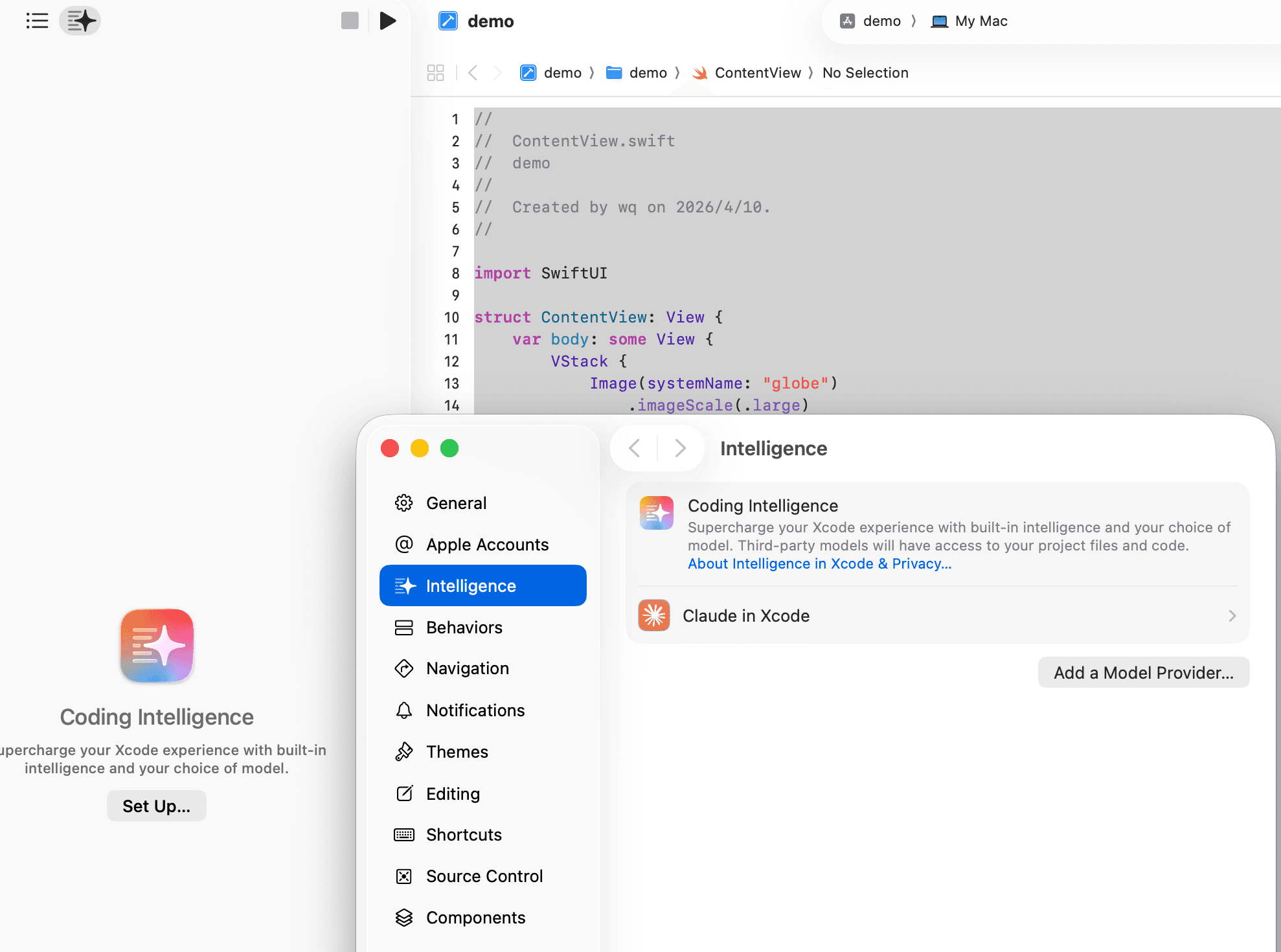
-
Select the
Internet Hostedtab. Fill in the following information:- URL: https://tokenoff.com/api/cmp
- API Key: Enter the API key you created on the API Keys page.
- API Key Header: Enter
X-Api-Key. Please note the case sensitivity.
After saving, you can select the model in the chat window as shown below:
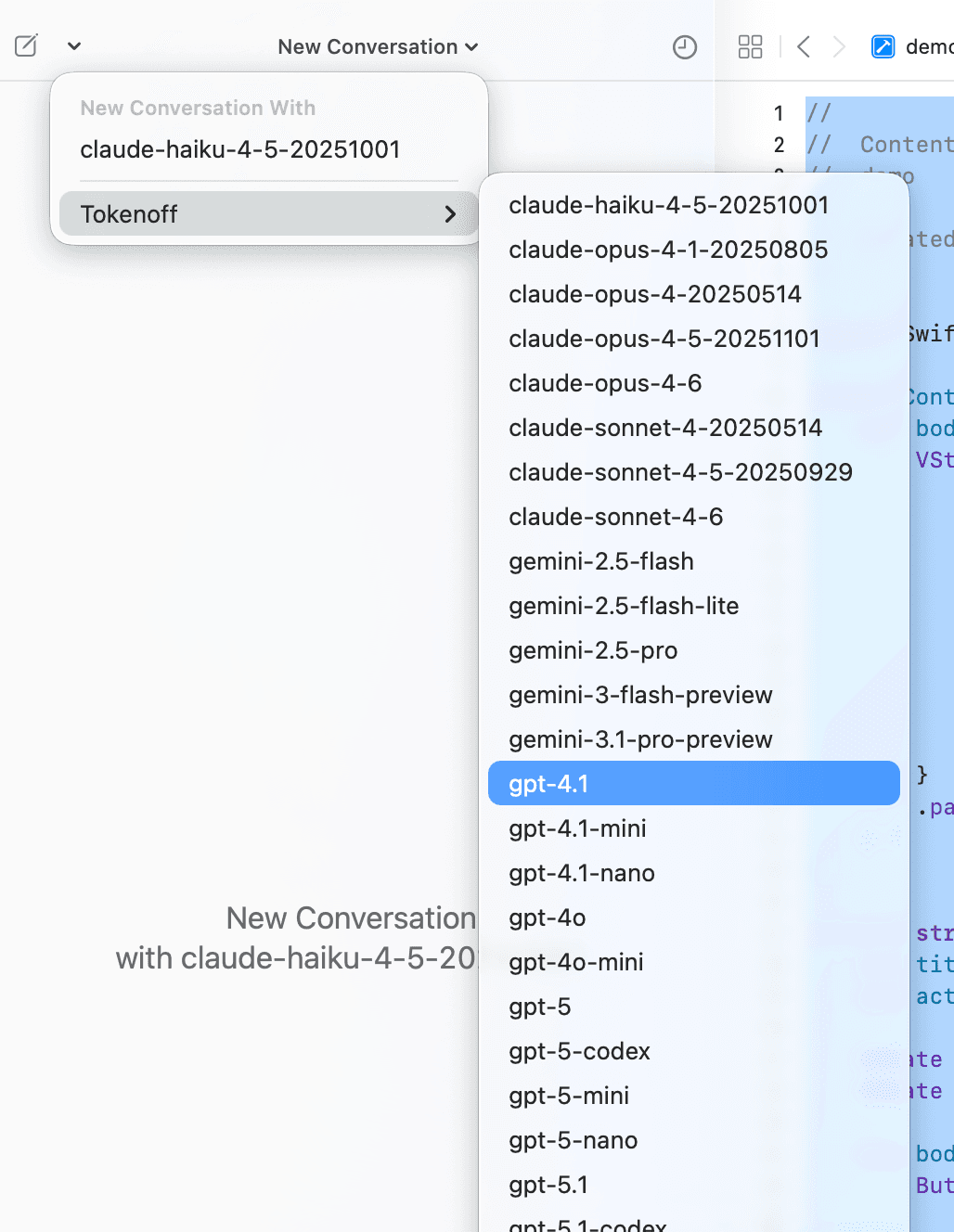
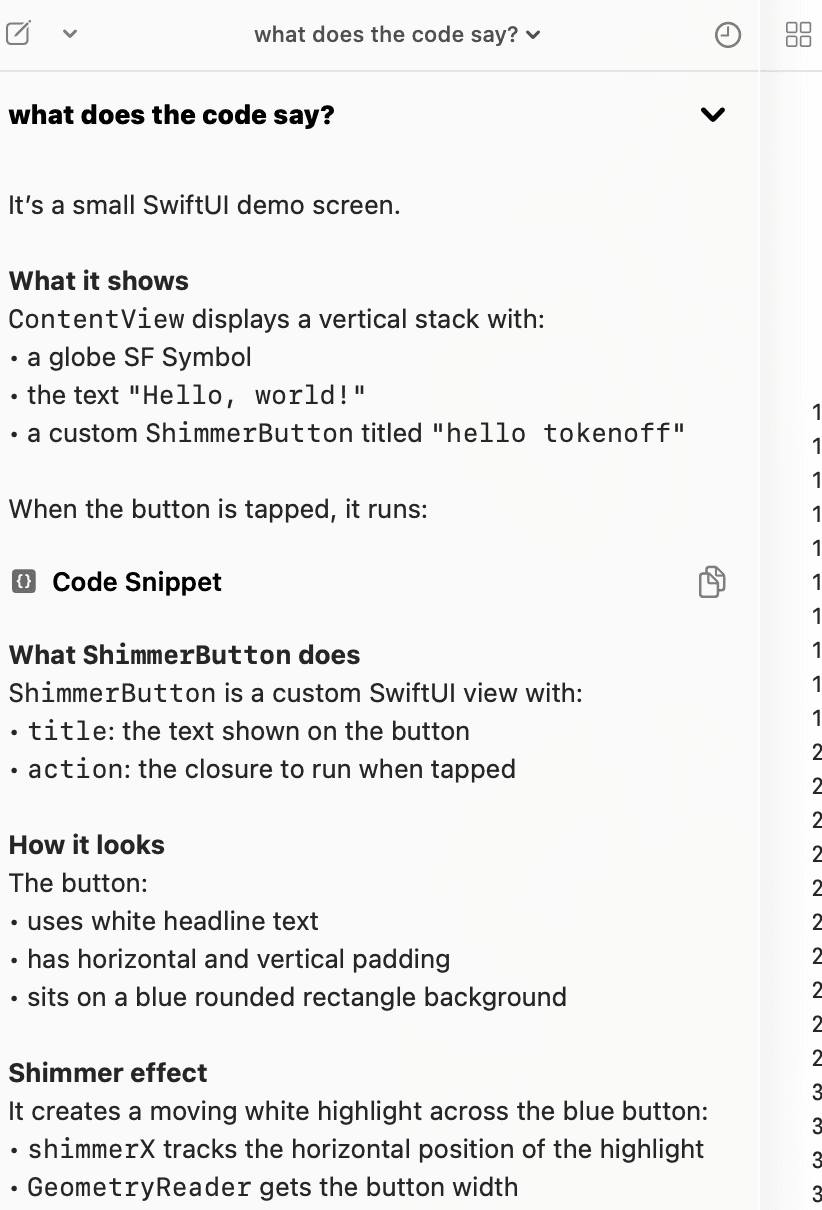
Then, you can chat with the selected model in the conversation window.
CopilotForXcode
CopilotForXcode is a third-party open-source plugin that supports connecting to custom model services via API and provides some Agent capabilities.
Note: We chose
CopilotForXcodebecause it meets the basic requirements for vibe coding and serves as an example for integrating with TokenOff's model services.
Install Plugin
brew install --cask copilot-for-xcodeEnable Plugin
-
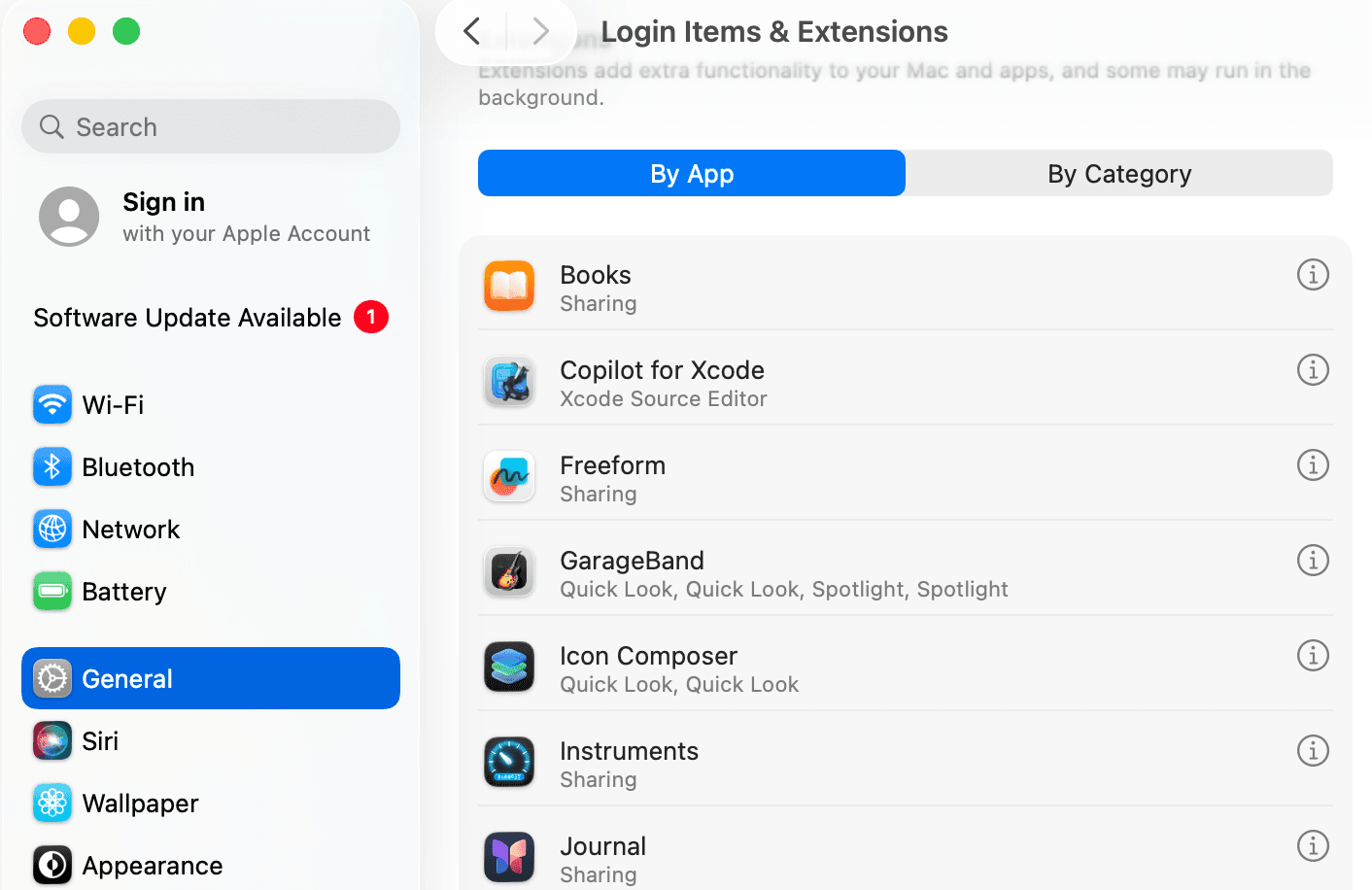
Open system settings as shown below:
-
Select
Copilot for Xcode Extensions, enableXcode Source Editor: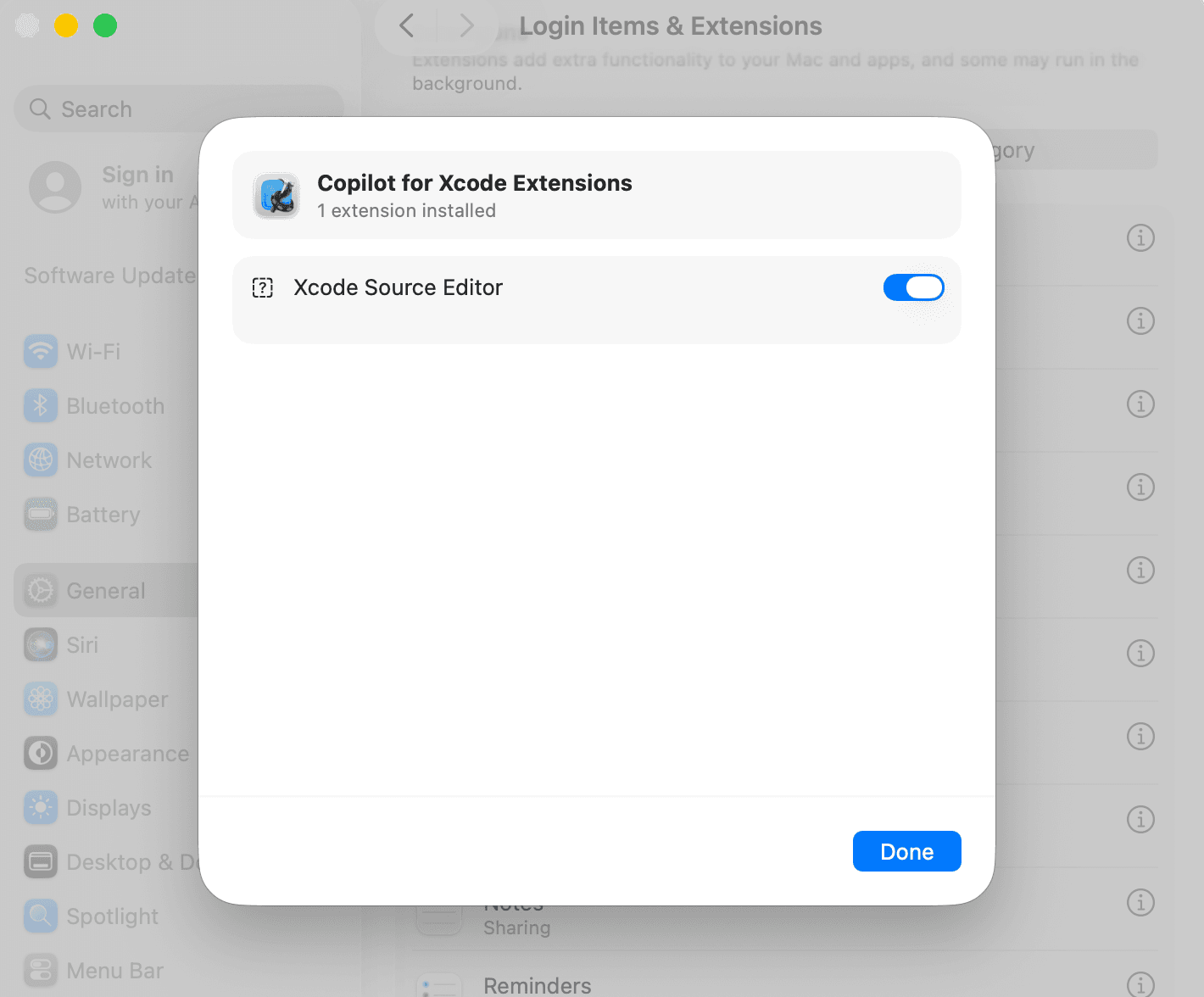
Connect to TokenOff
-
Open
Copilot for Xcode, selectService, click theChat Modelstab: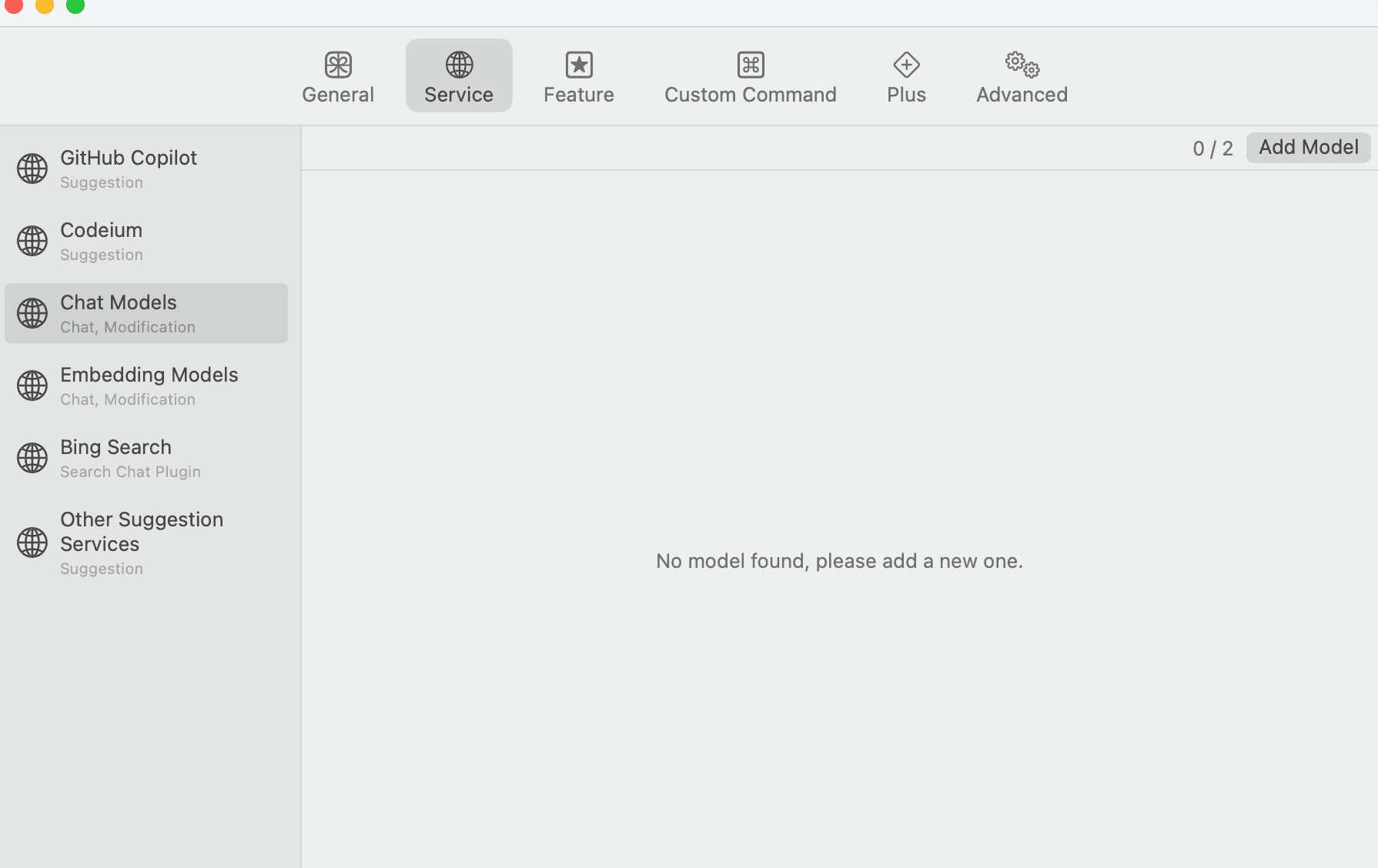
-
Click
Add Modelto add a model service:- Format: The model family you want to use. Different model families have different API interfaces. Since we want to use Claude models, select
Claudehere. - Base URL: https://tokenoff.com/api
- API Key: Add a new API key using the button on the right. Name must be
X-Api-Key, please note the case sensitivity. Key is the API key you created on the API Keys page. - Model Name: Enter the model you want to use. Go to the Models page to select from our supported Claude models.
The model list in the plugin is outdated and no longer officially supported.
You can click
Testto verify the configuration is correct.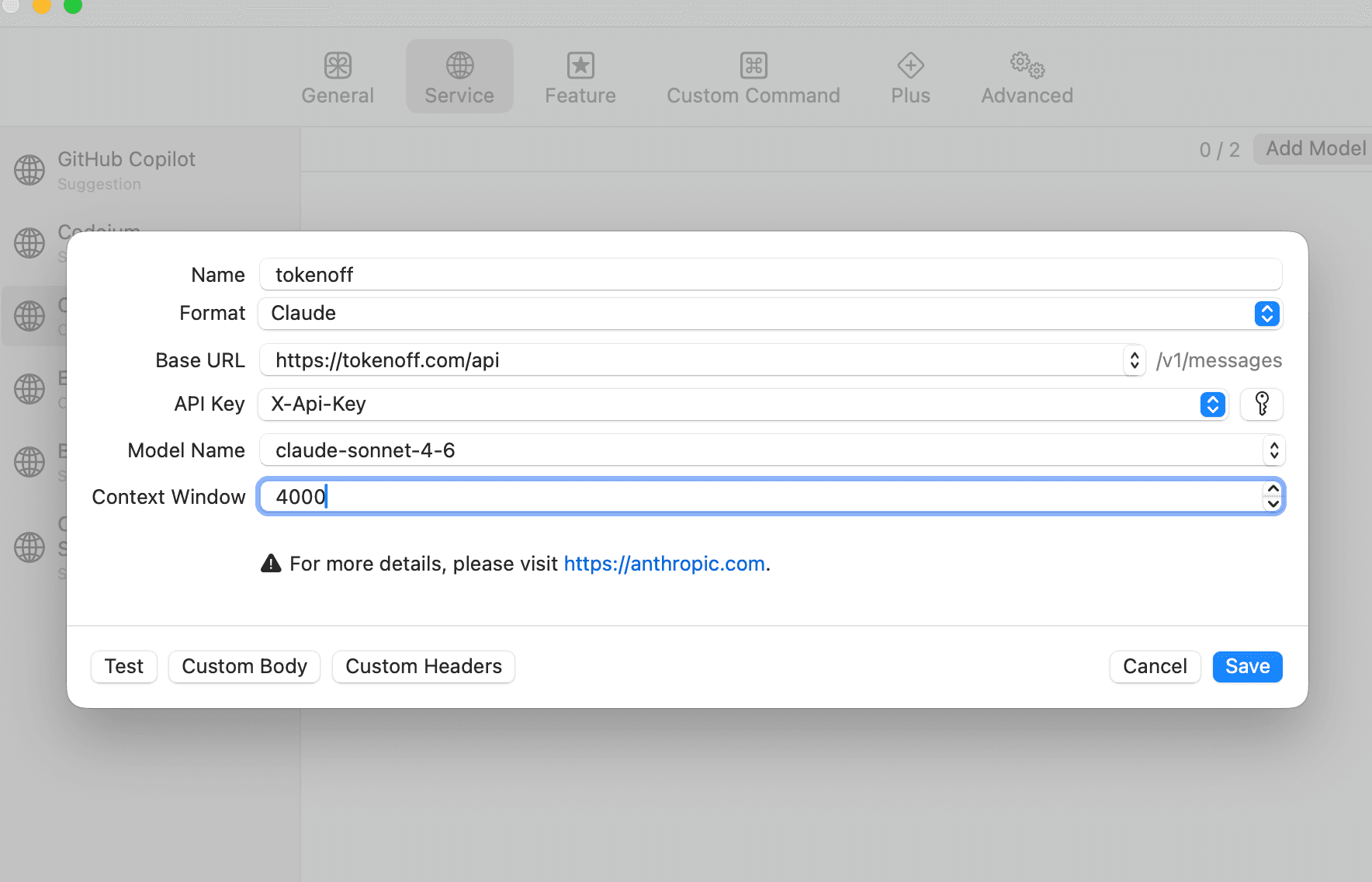
- Format: The model family you want to use. Different model families have different API interfaces. Since we want to use Claude models, select
You can add multiple models here. The configuration method is the same for all.
Select Default Model
-
Select
Feature, click theChattab: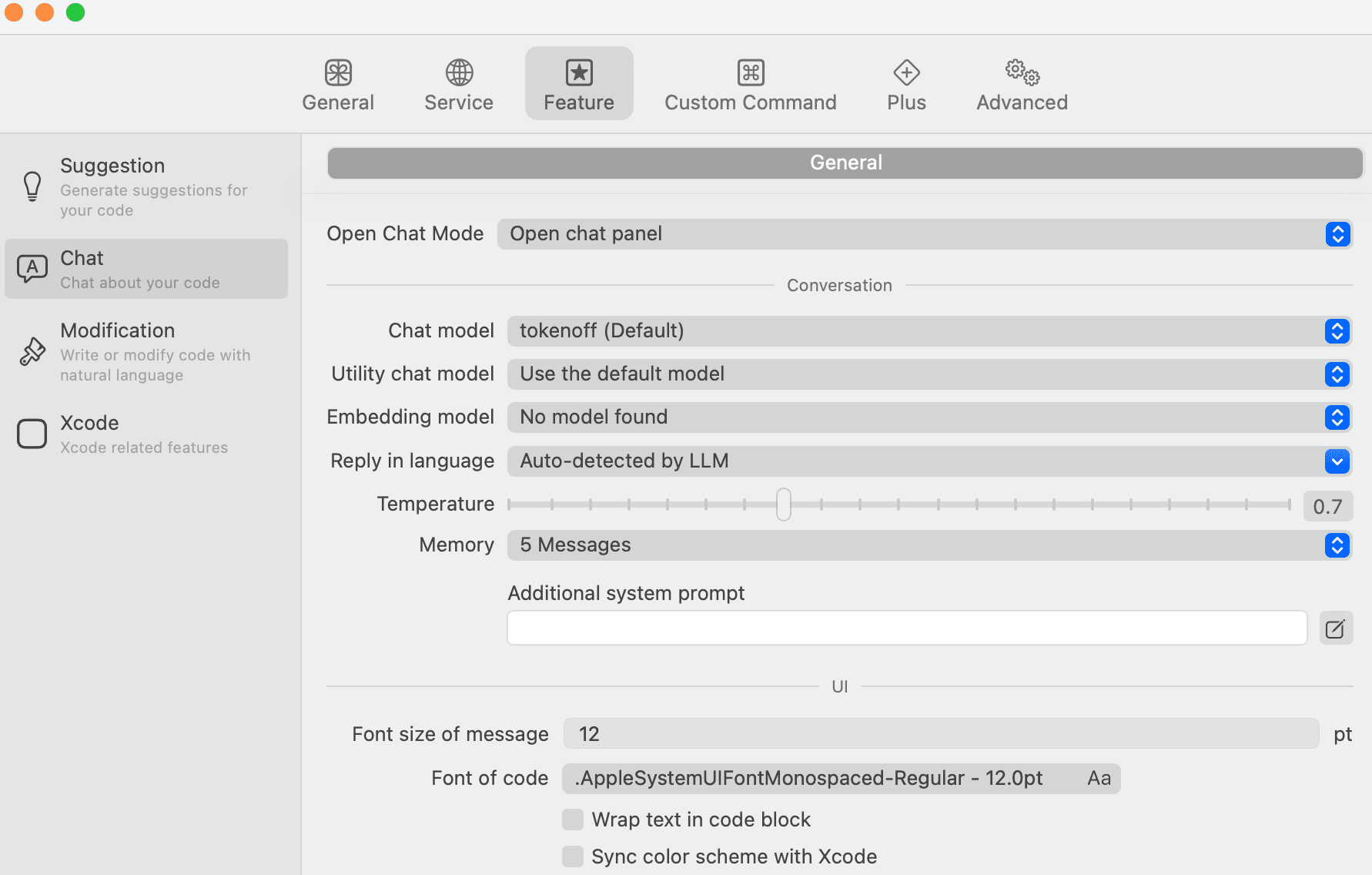
-
If you have configured multiple models, you can use the
Chat modeldropdown to select the default model when opening the chat dialog.
Start Using
After completing the above configuration, you can use the Copilot for Xcode plugin in Xcode.
As shown below, there will be a floating window in Xcode. Click it to create a conversation.
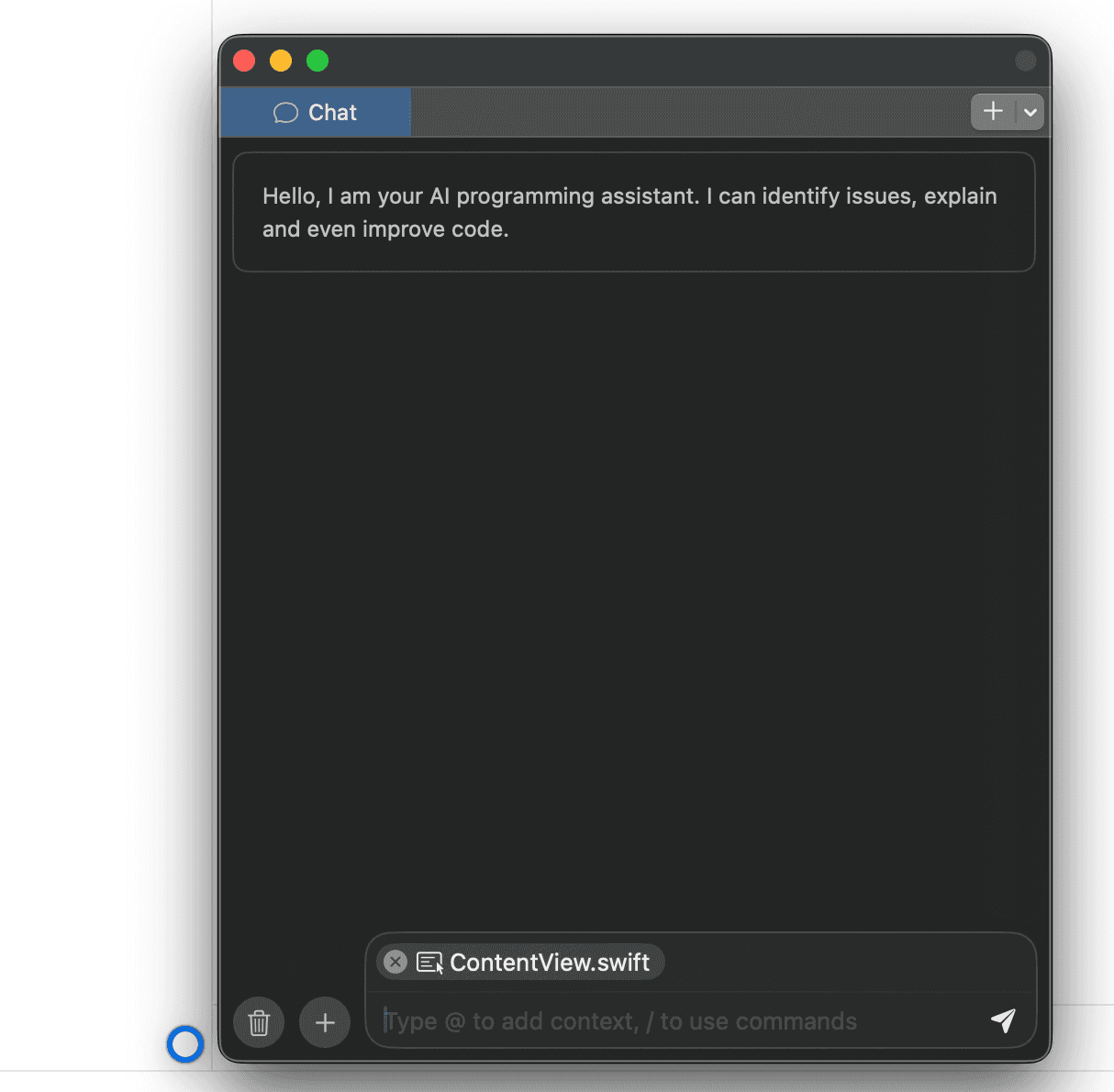
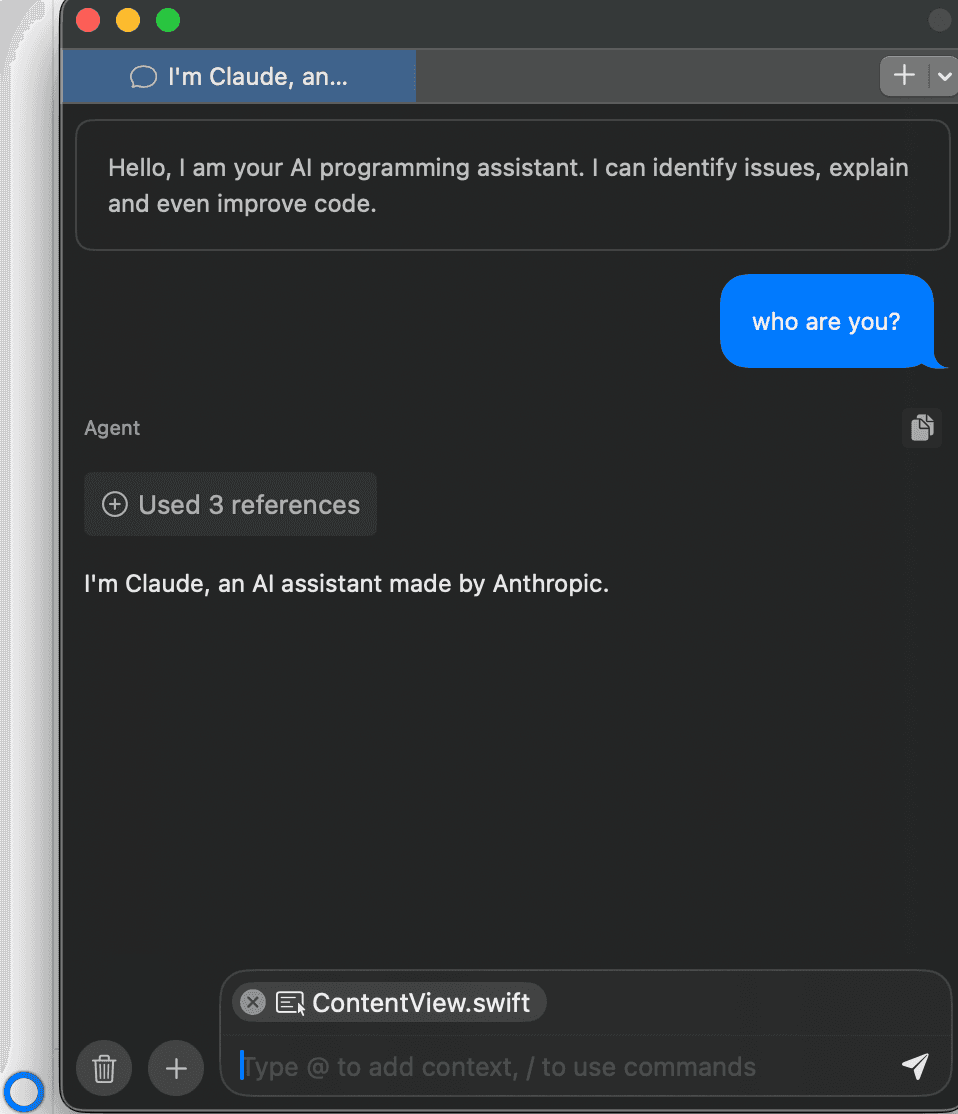
Then, you can ask the model to modify code.
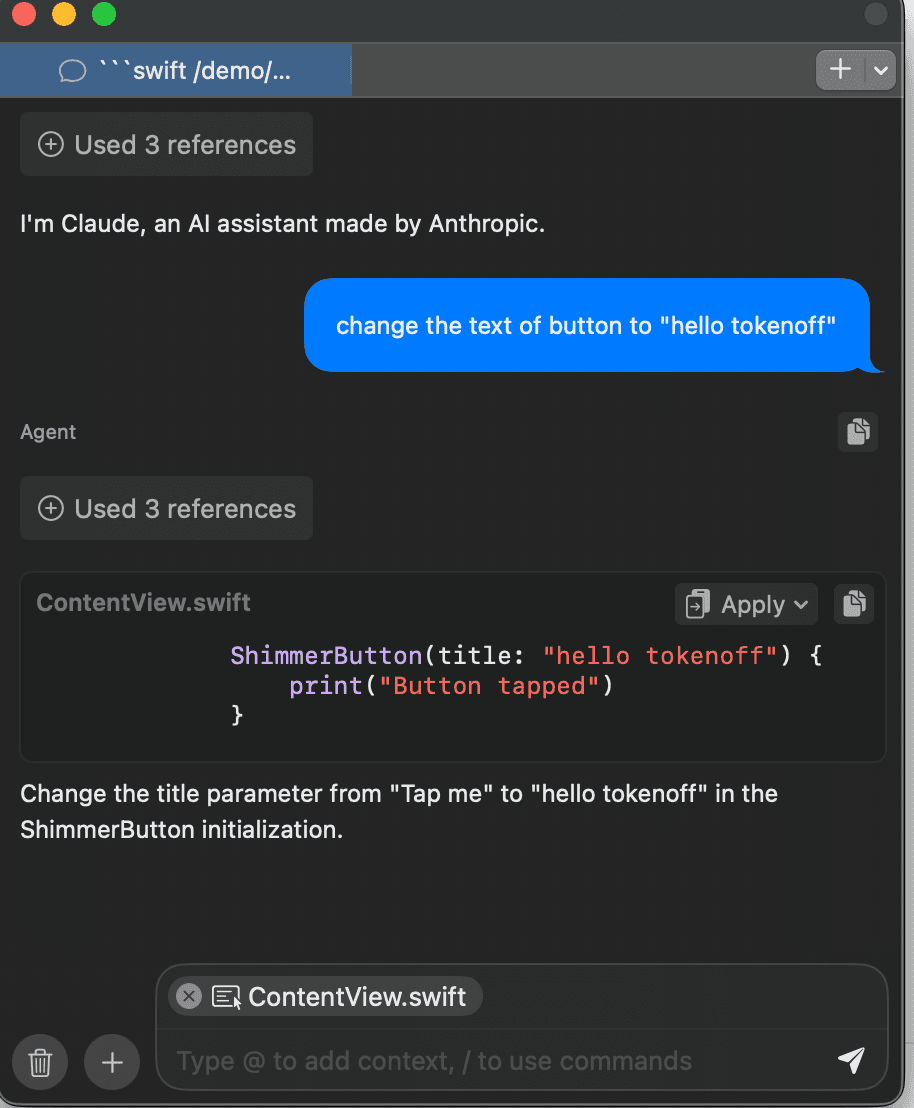
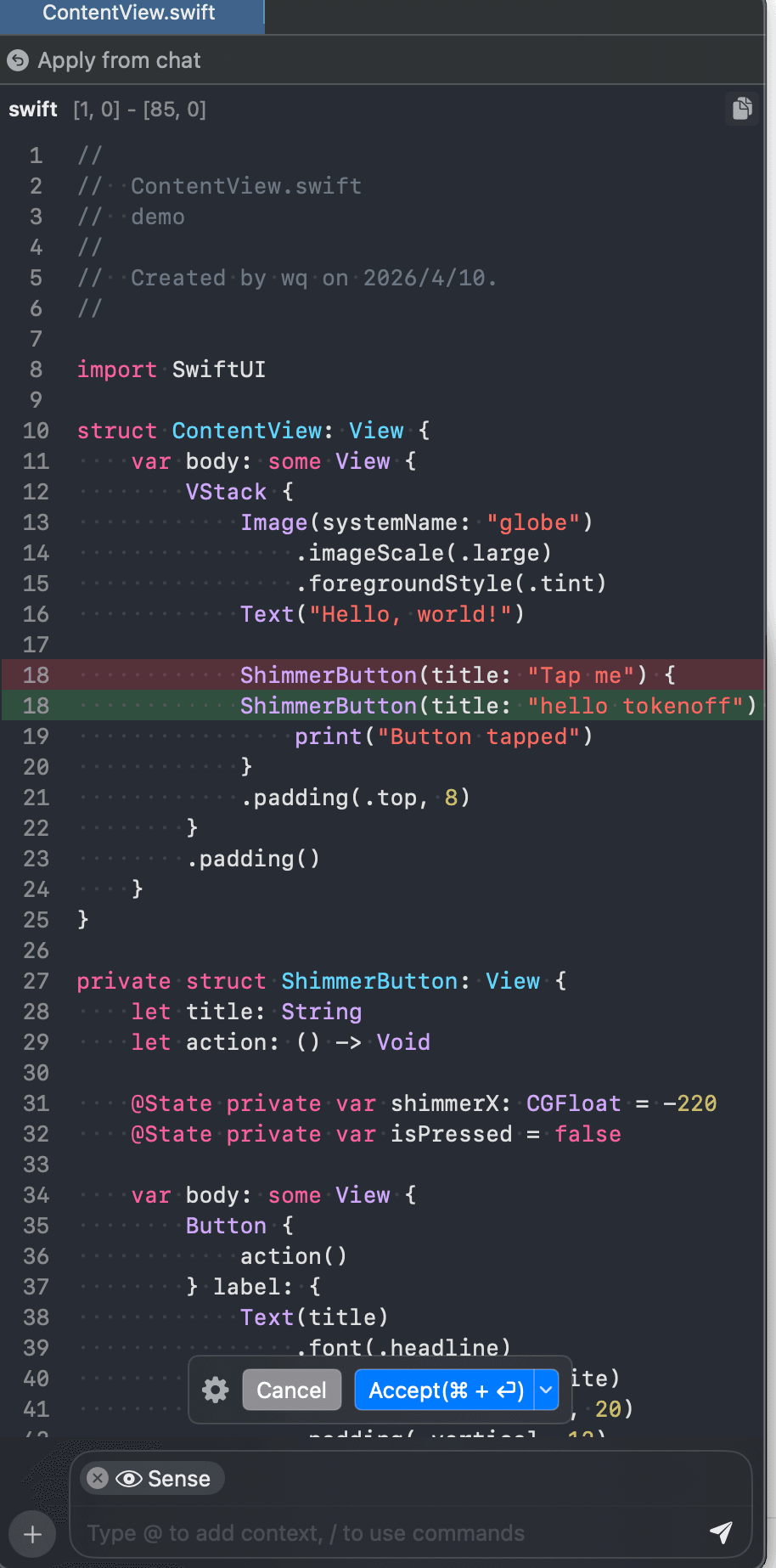
Note that by default, Copilot for Xcode is in conversation mode, which means it will generate code but won't automatically modify your files. As shown above, there's an Apply button. After clicking it, the plugin will generate the modified result.
You can choose to cancel or accept.
Agent Mode
In the default chat window, you cannot switch models. One way is to go back to the Feature page in Copilot for Xcode to configure.
There's another way.
In the window that appears after clicking the Apply button mentioned above, there are some options that allow us to enter automatic editing Agent mode.
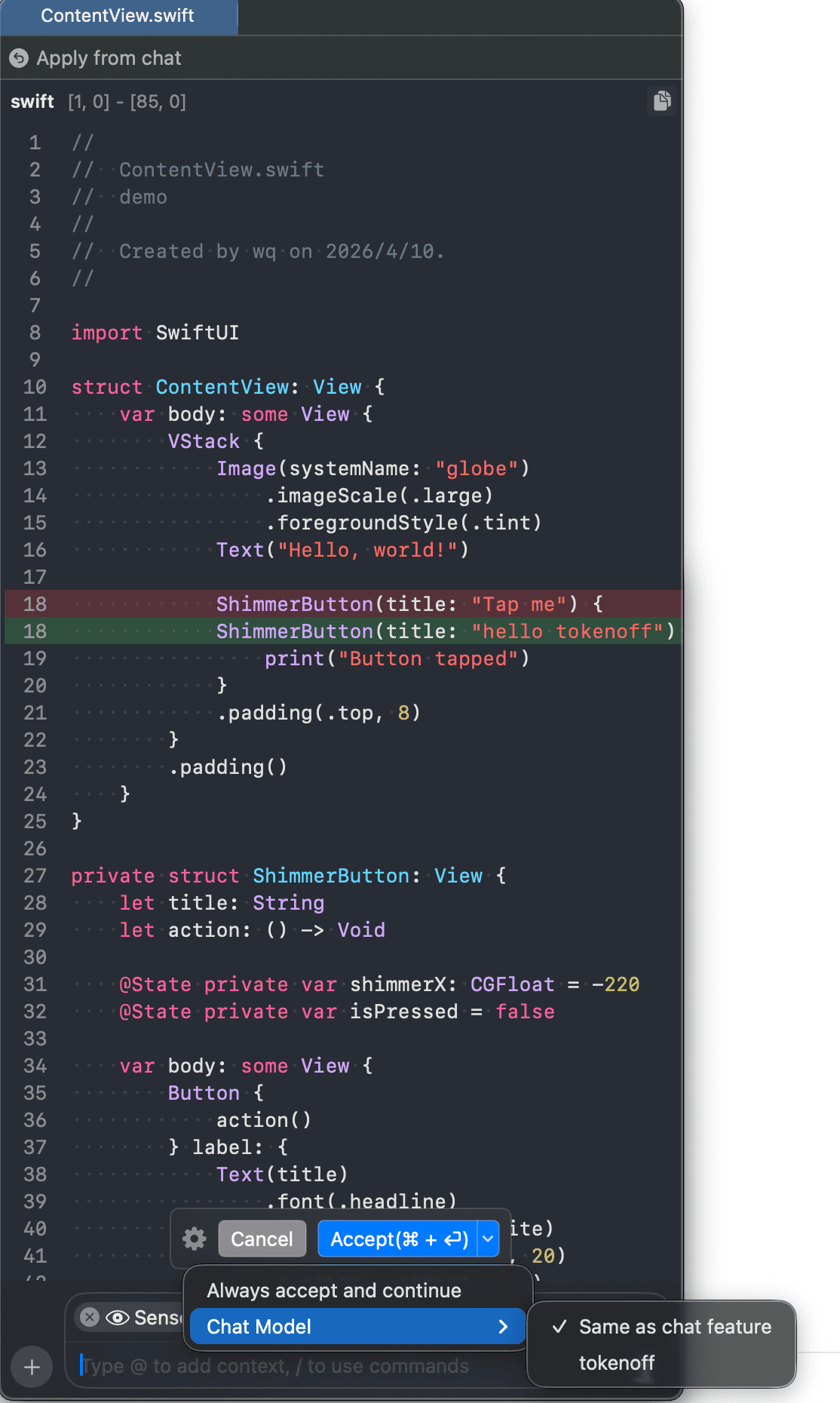
Click the settings button on the left to select Always accept and continue.
Contact Us
If you encounter any issues while using TokenOff:
Contact us atsupport@tokenoff.comand other official channels for technical support
Submit an issue on ourGithubrepository